iPhone bug ‘breaks’ your WiFi when you use an oddly named network. A new iPhone bug has been identified which crushes your iPhone’s wireless functionality by connecting to a specific WiFi hotspot.
Findings of the Bug
The reverse engineer Carl Schou came identified this issue when connecting to his WiFi hotspot named ‘ %p%s%s%s%s%n ’. His iPhone’s WiFi would be disabled, and every time he tried to enable it again, it would quickly turn off, even if he restarted the device or the hotspot name was changed.
After joining my personal WiFi with the SSID “%p%s%s%s%s%n”, my iPhone permanently disabled it’s WiFi functionality. Neither rebooting nor changing SSID fixes it :~) pic.twitter.com/2eue90JFu3
— Carl Schou (@vm_call) June 18, 2021
Investigation of the Bug
This bug was on Phone XS, running iOS version 14.4.2. The iOS 14.6 on iPhone’s wireless functionality confirmed that it would break after connecting to the strangely named wireless network.
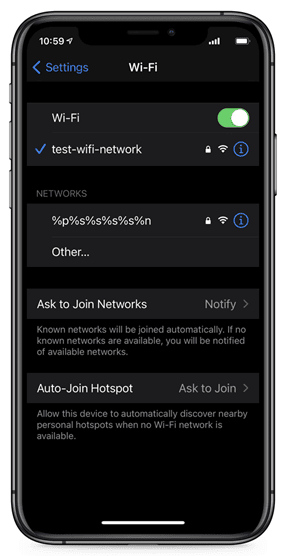
In some of the tests, the iPhones Wi-Fi setting would be disabled, and it could no longer be enabled again, as shown below.
It was found that the way to fix this iPhone’s broken Wi-Fi feature was to reset the device’s iPhone network settings. A bug like this is very serious!
According to users, the issue is unique to iPhones and does not appear to be reproducible on Android devices.
How to save your iPhone from this WiFi bug?
Although restarting your iPhone won’t fix the issue, this bug is not permanent and can be fixed without resetting your entire device.
Instead, you can follow these simple steps to reset your iOS network settings to resolve the issue:
-
Go to Settings on your iPhone, select General .
-
Under General select Reset.
-
You will now be at the Reset screen, where you can reset various features of iOS or the device itself. At this screen, select the ‘Reset Network Settings’ option and confirm you would like to continue when asked.
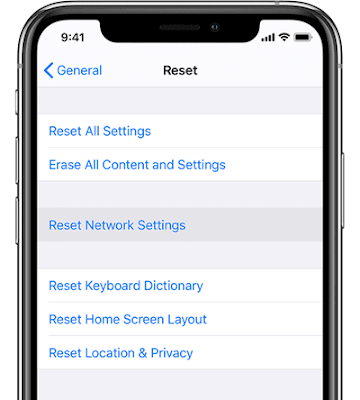
- The device will now restart and reset all of your network settings back to factory default. Once it has restarted, enter your passcode, and you can reconfigure your Wi-Fi settings again.